PROPHOURS GUIDE
How to Track Rental Work Hours with PropHours in ChatGPT
Just finished a turnover inspection, a repair, or a round of bookkeeping? Tell ChatGPT which property you worked on, what you did, and how long it took. Review the details and save the activity to PropHours. In the same chat, you can look up past work, check your annual goal, and review imported bookings.
Open PropHours in ChatGPT ↗Install the plugin and connect your account
- Open the PropHours plugin using the button above and select Install plugin. If ChatGPT prompts you to Connect, follow that prompt.
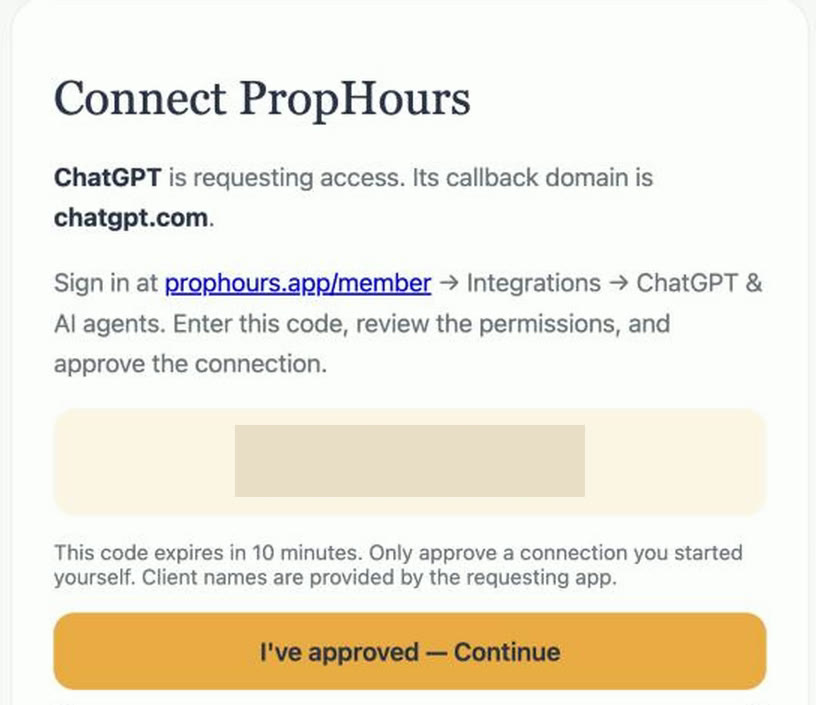
- On the Connect PropHours page, copy the connection code. It expires after 10 minutes.
- Sign in to your PropHours account on the web and open Integrations → ChatGPT & AI agents. If you have access to the integration in the mobile app, open Profile → Integrations → ChatGPT & AI agents.
- Enter your code and select Review connection. Check which app is requesting access, the callback domain, and the permissions before approving. Return to the authorization page and select I've approved — Continue to go back to ChatGPT.
Start a chat and find your properties
In a new ChatGPT conversation, type @ and select PropHours, or choose it from the + menu next to the message box. Ask for your property list to check that you connected the right account.
Try this prompt
Use PropHours to list the properties in my account.

Describe the work, then confirm and save
Include the property, work date, task, and time you actually spent. You can also add a category or a note. Replace the property and work details in this example with your own.
Try this prompt
I spent 35 minutes inspecting Harbor View Cottage after checkout and taking photos today. Use New York time. Show me the property, work date, task, and duration, and wait for my confirmation before saving.
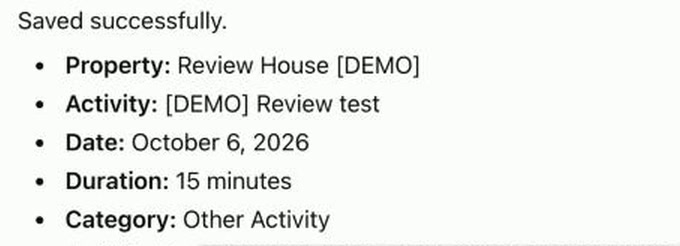
Review the details and reply Confirm and save. If ChatGPT asks you to approve the action, follow the prompt. When ChatGPT confirms the save, open Log in the same PropHours account to find the entry. The activity details include an AI-logged activity label.
Look up hours by property, date, or category
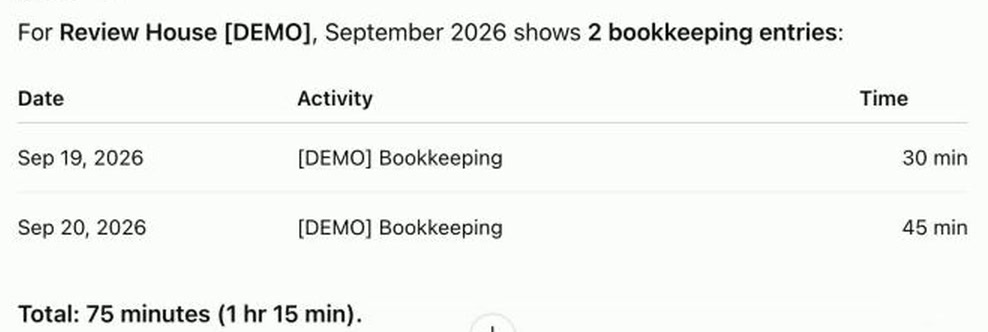
Ask ChatGPT for the activities that match your filters and their combined duration. If you work across time zones, specify which time zone to use for the date range.
Try this prompt
Show me the Finance & Records activities for Harbor View Cottage from September 1 through September 30, 2026, in New York time. List the date, task, and duration for each activity and give me the total.
Check your progress toward an annual goal
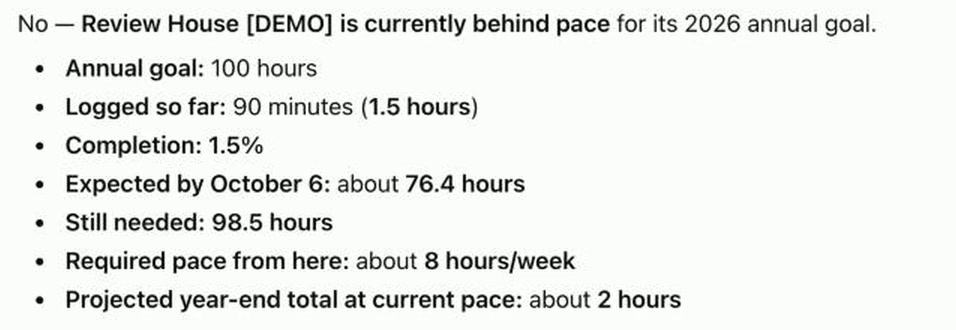
ChatGPT can show your logged hours for the year, the hours remaining, your projected year-end total at your current pace, and the weekly pace you would need to reach your goal.
Try this prompt
Am I on pace for my annual PropHours goal? Show my hours logged so far, how many hours I have left, and how many hours per week I need through the end of the year.
Use these figures to track your personal goal. Tax eligibility depends on the applicable rules and your circumstances.
Review imported bookings
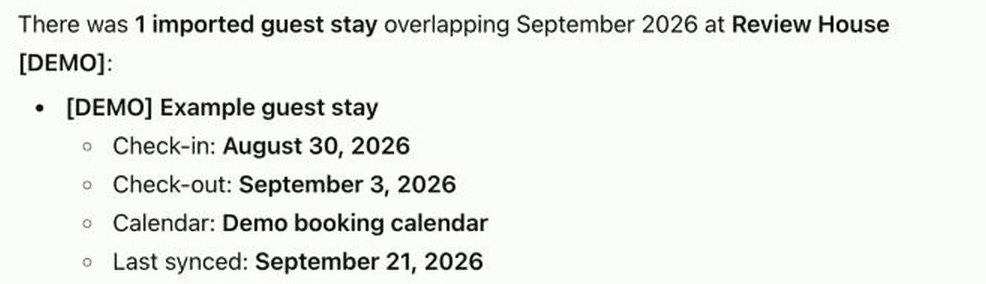
In PropHours, go to Profile → Integrations → Booking Calendars, choose a property, and import its iCal calendar. The ChatGPT connection needs permission to read bookings. You can ask for a date range, the source calendar, and when that calendar last synced.
Try this prompt
Show every imported stay at Harbor View Cottage that overlapped last month. Include the check-in date, check-out date, and when the calendar last synced.
Use booking dates to cross-check when an inspection or repair happened. Record the time you actually worked as a separate activity.
Attach a receipt to an existing activity
In a ChatGPT conversation that supports file uploads, upload a JPEG, PNG, or PDF of up to 5 MB. Give ChatGPT the property, work date, and activity name so it can find the right entry. Review the matched activity and file before confirming. Your connection needs permission to add evidence. PropHours keeps any existing attachments.
Send this after uploading the file
Find the November 12 entry titled “Replace door lock” for Harbor View Cottage. Show me the activity and the receipt file you matched, then wait for my confirmation before attaching it.
Common questions
Why can’t I find the plugin?
Try the direct link at the top of this guide. Availability can depend on your ChatGPT plan, region, workspace, and interface. If the integration shows a Pro badge in the PropHours app, open the Integrations section of your PropHours account on the web to find the authorization screen.
What if I’m asked to reconnect or can’t find my bookings?
Reconnect PropHours in ChatGPT’s plugin settings. If the connection works but bookings are missing, check that you imported a calendar for the property and that the connection has permission to read bookings.
How do I disconnect PropHours?
In PropHours, open Integrations → ChatGPT & AI agents and disconnect the relevant entry in the list of connected assistants. You can also manage the connection in ChatGPT’s plugin settings.
How do I correct an entry?
Open the activity in the PropHours Log and edit it there. Use ChatGPT to add new activities and attach evidence to existing ones.
Related reading
See how PropHours keeps short-term rental hours and REPS hours organized, or explore timers, widgets, and record strength for work you log from the app. For help connecting an account, visit PropHours Support.