
Real Estate Professional Status
Free REPS Hours Tracker
Log real estate work by property, compare it with hours from your other work, and keep a dated record for your CPA. Start with the free workbook or check your totals here.
Excel and Google Sheets · No sign-up
Check your REPS hours
Enter your totals for the same tax year.
More than 750 hours
— Annual real estate hoursMore than half
— Share of total work timeResults compare the hours you enter. Review which work qualifies with your CPA.
Start a REPS hours log in Excel or Google Sheets
Use the Hour log tab to record each task, then open the REPS tab to review monthly totals and compare your real estate hours with your other work.
View the workbook guide and printable options- Open the workbook. Use Excel or import the .xlsx file into Google Sheets with File → Import.
- Replace the sample rows. Record the date, property, task, time spent and a reference to any supporting records.
- Review your year. Add other real estate work and outside-work hours on the REPS tab. Compare both totals for the same tax year.
Track REPS hours in the PropHours app
Log work as you go with a timer, voice or an AI draft. Attach receipts and photos to individual entries, then export a dated log for your CPA.
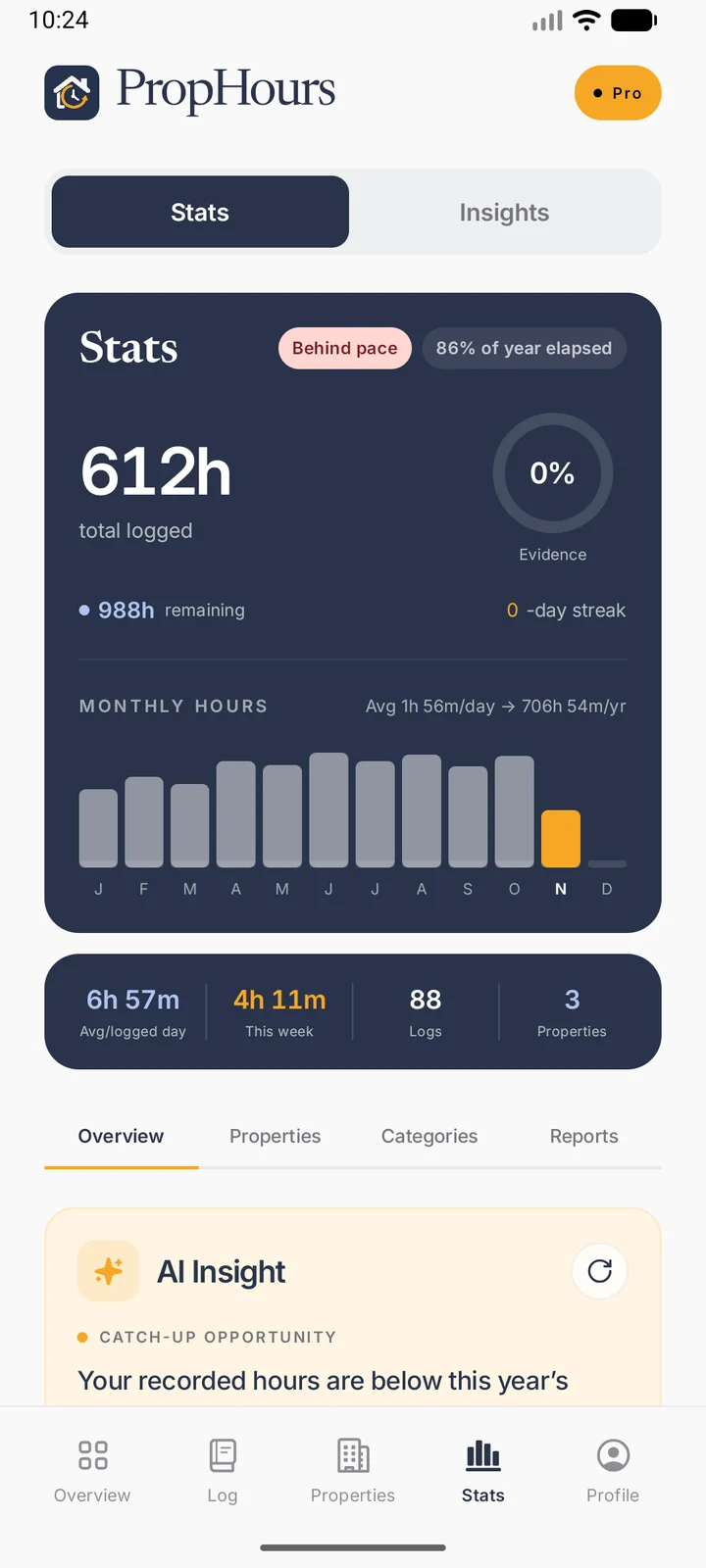
In Stats, the REPS Hours Tracker shows your progress toward 750 hours across properties. Enter hours from your other work to see how the two totals compare.
Try PropHours Pro free for 14 days.
How to build a real estate professional hours log
Use the REPS Hours Tracker to keep dated work records across your rentals and review your annual totals. Clear task descriptions help your CPA decide which entries to include.
Record work by property and activity
Log the date, property, category and time for each task. Write “Showed Unit 2 and followed up with two applicants” or “Met the contractor to inspect the kitchen repair” so your log explains what happened and where.
Bring in records you already have
If you kept a spreadsheet, use CSV activity import on the web. Match the columns and properties, then review dates and durations before confirming the import. Compare imported rows with existing entries before reviewing your totals.
Update hours from your other work
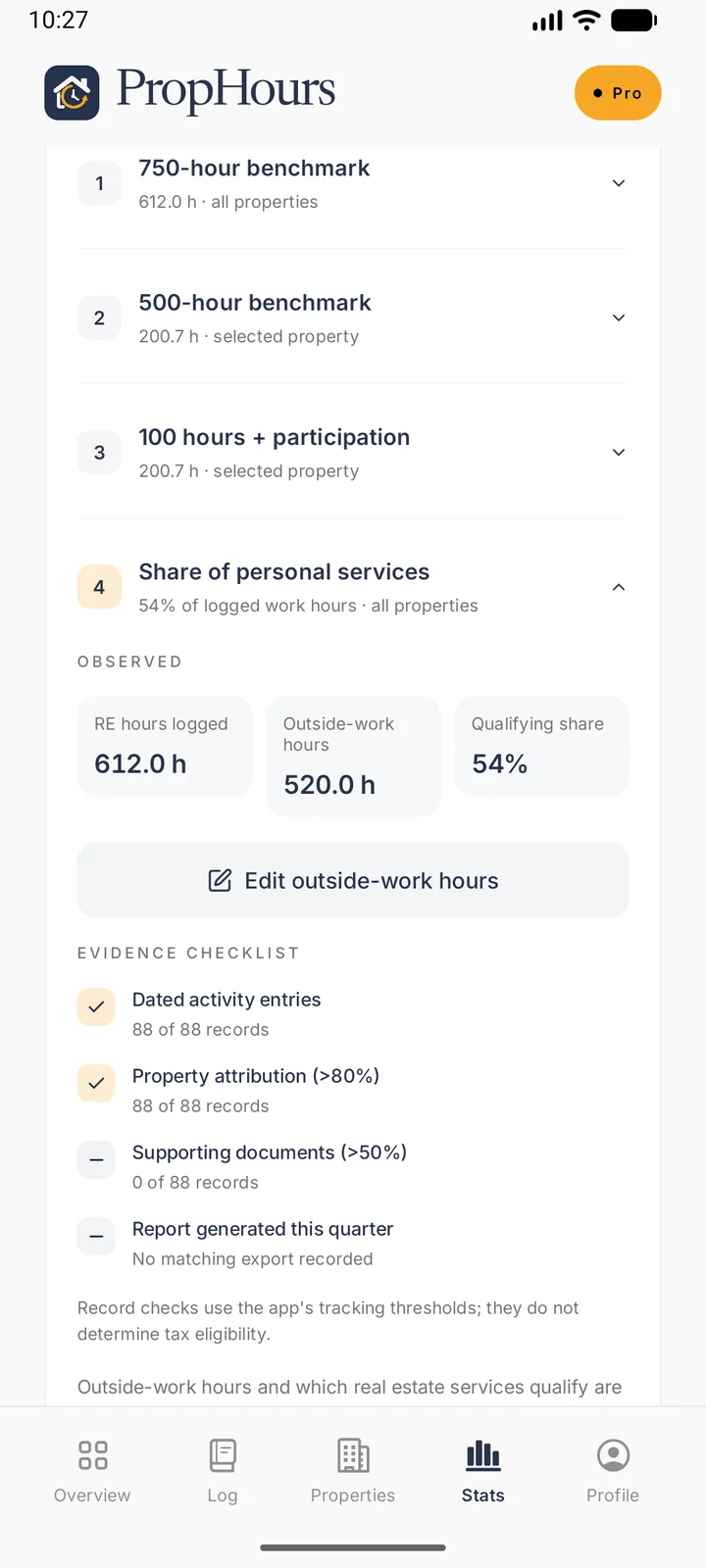
In Stats, select the tax year and open Participation review. Enter the time you worked outside real estate for the same period, using records from your job or other business. Update that figure as the year progresses.
Compare outside-work hours and export your REPS log
Review the more-than-half test
Open Participation review to see the share of your entered work hours spent in real estate. Update your outside-work total as you reconcile your records for the selected year.
Export a dated real estate hours log
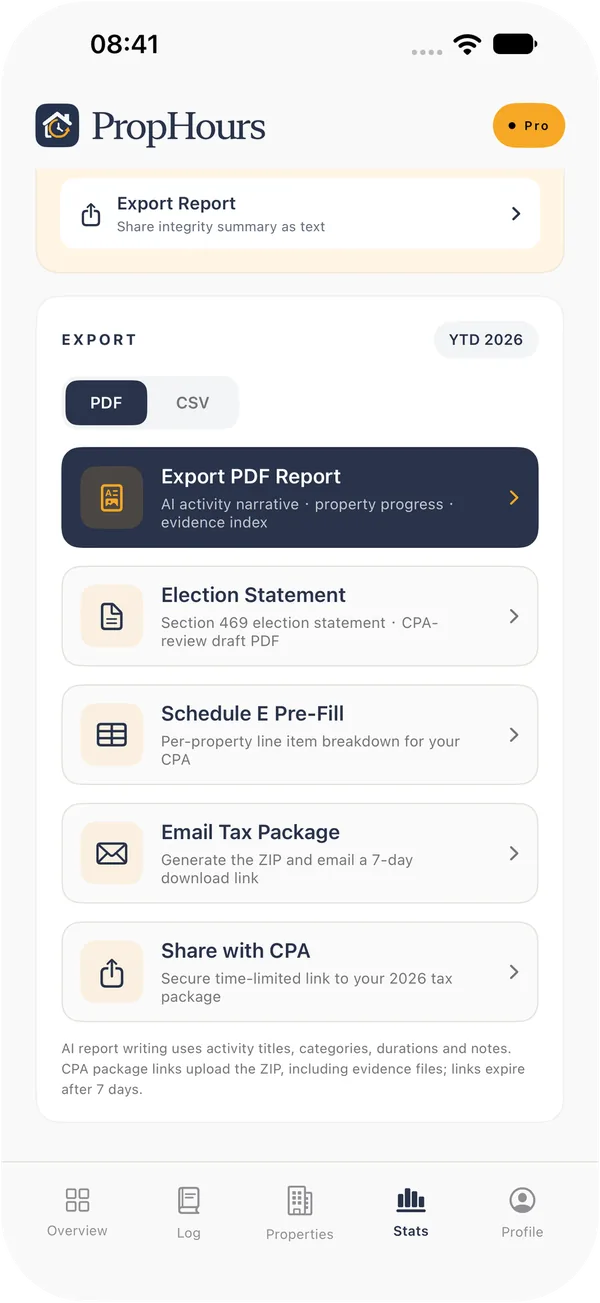
Export the activity log in PDF or CSV so your CPA can check what you did, when you did it and which property each record belongs to.
How the two REPS hour tests work together
For Real Estate Professional Status, the hour test requires more than 750 qualifying real estate hours during the tax year. The more-than-half test also looks at your time across all trades or businesses. Compare these two examples to see why the annual total and the percentage answer different questions.
| Hours recorded | Sample A | Sample B |
|---|---|---|
| Real estate work | 612 h | 780 h |
| Outside work | 520 h | 920 h |
| Real estate share of total work time | 54% | 46% |
Sample A is above 50% and below 750 hours. Sample B is above 750 hours and below 50%. Review which work qualifies with your CPA. IRS Publication 925 explains the qualification rules and how material participation applies to rental activities.
Reconcile real estate and outside-work hours each month
Set a regular review date. In the REPS Hours Tracker, confirm the tax year and look for gaps or unusually large totals in Stats. Compare the entries with your property records and bring your outside-work total up to the same cutoff date.
| Period | Real estate | Outside work |
|---|---|---|
| April | 72 h | 74 h |
| May | 64 h | 58 h |
| Two-month total | 136 h | 132 h |
Use the same dates for both totals
In the two-month example, 136 of 268 entered hours came from real estate, or about 51%. If you find another 21 hours of outside work in a May timesheet, the outside total rises to 153 and the real estate share is about 47%. Keep the source for the correction so you can explain why the totals changed.
Find the entries behind a spike
Review the activity log for a month with unusual hours. A renovation may explain a spike. A duplicate import or a task dated in the wrong month may also explain it. Open the entries and check the property, work date and duration against calendars, work orders or other records.
Track hours when you work in multiple roles
A workweek may include leasing your own rentals, supervising a renovation and working at another business. In each record, identify what you did, the property or business it served, and the role you were working in.
Distinguish work for your rentals and your employer
Record time spent showing one of your rentals separately from time worked for a real estate employer. The REPS rules generally exclude real estate employee services from qualifying real estate hours unless you own more than 5% of the employer. Keep employer time records and ownership information for your CPA to review. See IRS Publication 925 for the employee rule.
Keep each spouse’s personal work records
For a joint return, one spouse must meet the REPS hour tests using their own services. A spouse’s work can count when evaluating material participation in an activity. Keep the person who did each task in the record so your CPA can make both comparisons. See how spouse hours apply to REPS and material participation.
Match older timesheets to your activity log
Review partial overlaps before importing
Suppose a spreadsheet says you spent 45 minutes on a unit showing and already saved 15 minutes in PropHours for the same showing. Compare the source notes. If 45 minutes covers the complete visit, review the existing entry and reconcile the duration before importing. If the 15 minutes describes a separate follow-up call, keep the two descriptions distinct and confirm the time spent on each.
Check dates when work crosses a reporting period
If you prepared a unit on December 29 and showed it on January 3, create two dated entries. Keep each task with the period when you performed it. When a spreadsheet lists both activities under a single January invoice date, use the activity dates from your appointment records or work notes to review the import.
Start with one month when moving records from several sources. Confirm that the imported property, date and minutes match your source file. The material participation log template shows how to lay out a dated record.
Check the annual total before you export
Suppose the activity log shows 830 real estate hours. During review, you identify 30 duplicate hours and set aside another 40 hours for your CPA to assess. That leaves 760 hours in your working total. With 690 outside-work hours, the real estate share is about 52%. Keep the original records and document which entries explain the difference.
Keep the rental breakdown with the annual total
Ask your CPA to review the hours in each rental activity as well as the overall REPS numbers. Rental interests are generally reviewed separately for material participation unless an applicable election treats them as one activity. A property-by-property record gives your CPA the detail to use either approach when appropriate. See the Real Estate Professional Status guide for the rental rules.
Share the reviewed version and its supporting records
Use the same date range for the annual activity export and the outside-work total. Include a short note identifying unresolved entries and the source of any estimates. If you correct the log after sharing it, send the revised export and tell your CPA which property or entries changed.
Prepare your annual REPS records for CPA review
Start with the year in Stats and use the same reporting period for your exports and outside-work totals. That gives your CPA a consistent set of figures to reconcile.
- Annual log. Export a dated activity log in PDF or CSV with the property and work details for each record.
- Evidence and context. Attach receipts or documents to the relevant entries and flag work you want your CPA to review.
- Outside-work total. Share the total you entered and the records you used to calculate it.
- Property records. Keep rental-by-rental activity available for the separate material participation review. See how CPA access in PropHours works.
Questions about tracking REPS hours
Can I use the free REPS Hours Tracker workbook in Google Sheets?
Yes. Download the .xlsx workbook, then use File → Import in Google Sheets. The Hour log and REPS tabs let you record individual tasks and review the year’s totals.
Is 750 hours enough for Real Estate Professional Status?
The hour test calls for more than 750 hours of qualifying services. Those services must also make up more than half of the personal services you performed in all trades or businesses that year. The tracker shows your recorded time. Review which hours qualify with your CPA, using our Real Estate Professional Status guide and IRS Publication 925.
Where do I enter hours from my other work?
Open Stats, select a year, then open Participation review. Under the share of personal services, enter or update your outside-work hours.
Can I import hours into the REPS Hours Tracker?
Use CSV activity import on the web. Match the columns and properties, then review the activity dates and durations before importing them into your workspace.